
Using a Bambu Lab "Fleet Hub" with the Polar Cloud
Outline
The Polar Cloud supports Bambu Lab’s Fleet Hub, providing a streamlined way for schools, universities, businesses, and other organizations to connect and manage multiple Bambu Lab 3D printers.
What is a Bambu Lab Fleet Hub?
Bambu Lab Fleet Hub is a small hardware device designed to act as a central connection point for multiple Bambu Lab printers on the same network.
Normally, connecting Bambu Lab printers to third-party software requires configuring each printer individually. This can mean enabling the appropriate network and developer settings and collecting information such as each printer’s Access Code and serial number.
That works well for individual printers and smaller installations, but it can become cumbersome when an organization manages a larger fleet.
You do not need a Fleet Hub to use Bambu Lab printers with the Polar Cloud. If you don’t have one, the Polar3D Agent can connect to supported Bambu Lab printers using our standard integration. You can also use the Polar3D Bridge app for wider OS availability (Linux SBC, Mac, Windows).

Instead of the Polar Cloud communicating with each printer individually, the Polar3D Agent communicates with the Fleet Hub. The Fleet Hub discovers and communicates with the Bambu Lab printers on your local network.
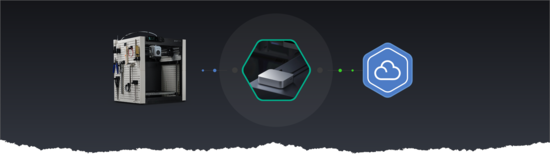
The basic architecture looks like this:
Bambu Lab Printers → Fleet Hub → Polar3D Agent → Polar Cloud
With Fleet Hub, you do not need to collect an Access Code or serial number from every printer, or individually enable Developer Mode or LAN Mode. Fleet Hub handles the local printer communication and automatically discovers available printers.

Do I need a Fleet Hub?
No. A Fleet Hub is not required to connect supported Bambu Lab printers to the Polar Cloud.
When configuring the Polar3D Agent, you’ll be asked whether your organization has a Bambu Lab Fleet Hub.
- If you have a Fleet Hub: the Agent can connect through Fleet Hub and use its local API to communicate with your printers.
- If you do not have a Fleet Hub: the Agent will use Polar’s standard Bambu Lab integration instead.
Fleet Hub is particularly useful for organizations managing multiple Bambu Lab printers or those that prefer a centralized, locally managed connection to their Bambu fleet.
What you’ll need
Before getting started, you’ll need:
- A Bambu Lab Fleet Hub connected to your local network
- Your Bambu Lab printers connected to the network
- The Polar3D Agent installed on a supported computer on the same local network
- Access to Bambu Lab’s developer panel
- Your Polar Cloud account credentials
You do not need to configure or pair every printer with the Fleet Hub before beginning the Polar setup process.
Step 1: Open the Polar3D Agent
Launch the Polar3D Agent on the computer that will maintain the connection between your local Bambu Lab environment and the Polar Cloud.
The Agent must remain running to maintain communication with your Fleet Hub and printers. It is not only used during initial setup.
Step 2: Select Fleet Hub
When adding Bambu Lab printers, the Agent will ask whether you have a Bambu Lab Fleet Hub.
Select Yes.
If your organization does not have a Fleet Hub, select No and the Agent will continue using Polar’s standard Bambu Lab connection process.
Step 3: Locate your Fleet Hub
The Polar3D Agent will first attempt to automatically discover your Fleet Hub on the local network.
If the Fleet Hub is discovered, select it and continue.
If automatic discovery does not find your Fleet Hub, you can manually enter the Fleet Hub’s IP address.
The computer running the Polar3D Agent must be able to communicate with the Fleet Hub over your local network.
Step 4: Generate your Fleet Hub certificate
Fleet Hub uses certificate-based authentication to authorize applications that communicate with it.
Open Bambu Lab’s developer panel and generate the certificate/key required for your Fleet Hub integration.
Save the generated certificate somewhere accessible from the computer running the Polar3D Agent.
Keep this certificate secure. It is used to authorize communication with your Fleet Hub and should be treated as a credential.
Step 5: Activate Fleet Hub in the Polar3D Agent
Return to the Polar3D Agent and upload the certificate generated through Bambu Lab.
Follow the Agent’s activation steps to authorize communication with your Fleet Hub.
Behind the scenes, the Polar3D Agent communicates directly with the Fleet Hub over your local network using the Fleet Hub’s REST API on port 8888.
The Agent initiates this communication locally. The Fleet Hub itself does not need outbound internet access after activation for the Polar integration to communicate with it.
For network administrators: Make sure the computer running the Polar3D Agent can reach the Fleet Hub on TCP port 8888. Network segmentation, VLANs, or firewall rules may otherwise prevent automatic discovery or communication.
Step 6: Sign in to the Polar Cloud
Once Fleet Hub activation is complete, sign in through the Agent using your Polar Cloud credentials.
This connects the Agent to your Polar Cloud account and allows it to securely relay printer information and commands between the Polar Cloud and your local Bambu Lab environment.
Step 7: Select your printers
The Agent will discover the Bambu Lab printers available through Fleet Hub.
Select the printers you want to connect to the Polar Cloud.
You do not need to enter each printer’s:
- Access Code
- Serial number
- Developer Mode configuration
- LAN Mode configuration
This is one of the primary advantages of using Fleet Hub, particularly when deploying a larger number of Bambu Lab printers.
Once selected and connected, these printers will appear and behave in the Polar Cloud just like Bambu Lab printers connected through Polar’s standard integration.
What can I do with Fleet Hub printers in the Polar Cloud?
Printers connected through Fleet Hub have the same core Polar Cloud functionality as printers connected through our standard Bambu Lab integration.
This includes functionality such as:
- Viewing printer status and information
- Submitting print jobs
- Monitoring prints
- Viewing supported camera feeds
- Pausing prints
- Cancelling prints
- Managing printers through the Polar Cloud
The main difference is how Polar communicates with the printers, not what you can do with them.
Why use Fleet Hub with the Polar Cloud?
For an organization with many Bambu Lab printers, Fleet Hub can significantly simplify deployment.
Without Fleet Hub, each printer must be configured for the standard Bambu integration. With Fleet Hub, the Hub provides a centralized local interface to the Bambu Lab printers, while the Polar3D Agent connects that environment to the Polar Cloud.
This gives your organization the benefits of Bambu Lab’s local fleet infrastructure together with the remote management, print submission, monitoring, and organizational tools available through the Polar Cloud.
Troubleshooting
The Agent can’t automatically find my Fleet Hub.
Make sure the computer running the Polar3D Agent and the Fleet Hub can communicate over the local network. If automatic discovery still doesn’t work, enter the Fleet Hub’s IP address manually.
The Agent finds the Fleet Hub but can’t connect.
Verify that the correct Bambu Lab certificate has been uploaded and that the computer running the Agent can communicate with the Fleet Hub on port 8888.
My printers aren’t appearing.
Verify that the printers and Fleet Hub are connected to the appropriate local network and that the printers are powered on and available. You do not need to individually configure Access Codes, serial numbers, Developer Mode, or LAN Mode when using Fleet Hub.
Can I use the Polar Cloud without Fleet Hub?
Yes. Fleet Hub is optional. If you don’t have one, choose No when the Polar3D Agent asks about Fleet Hub and follow the standard Bambu Lab setup process.
Can I close the Polar3D Agent after setup?
No. The Agent provides the ongoing connection between your Fleet Hub and the Polar Cloud and must remain running for the integration to function.